
Lead generation guide
How to bulk export businesses from a map: try this
If you have ever tried to build a prospect list from a map, you know the routine. You search a town, scroll the results, open each business, then copy the name, address, and phone number into a spreadsheet one row at a time. It works, but it is slow, and it does not scale when you need a few hundred businesses across an area. This guide shows a faster way to bulk export businesses by area, so you can spend your time on outreach instead of copy and paste.
Why copying businesses one by one does not scale
Manual map research has a few familiar problems. It is slow, because every business means another click and another paste. It is error prone, because details get mistyped or dropped. And it is hard to repeat, because the next person who needs the same list starts again from scratch. For a single café that is fine. For every supermarket, gym, or dealership across a city, it quickly eats a morning.
The job you actually want is simpler to describe than to do by hand: take all the businesses of a certain type in a certain area and get them into one list with useful contact fields.
A faster way: search an area, filter, then export
MapDemand.ai is built for exactly this. Instead of opening businesses one at a time, you define the area and the type of business you want, then export the matching companies together. The flow has three steps.
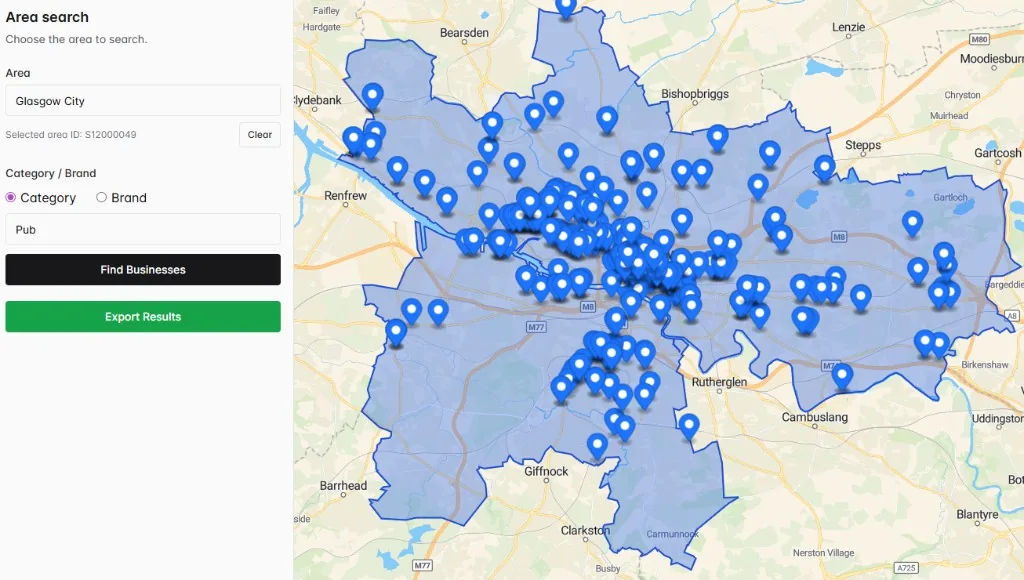
- Search a target area. Choose the town, city, region, or local market you want to cover and see the businesses in that area on a map.
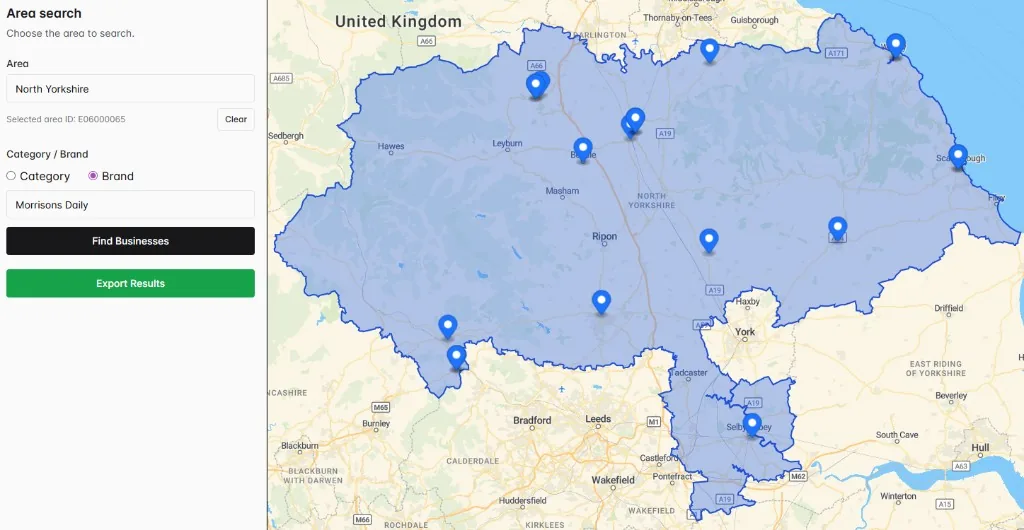
- Filter by category or brand. Narrow to the business type you sell to, such as supermarkets, gyms, or restaurants, or focus on a specific brand. You are left with only the companies that matter.
- Export the matching businesses. Download the whole list in one go, with useful contact fields, ready to load into your CRM or work straight from a spreadsheet.
The same approach works whether you want every business of a type or only the locations of one brand. For example, you can search a region and filter to a single brand to map its sites before exporting them together.
What a bulk export includes
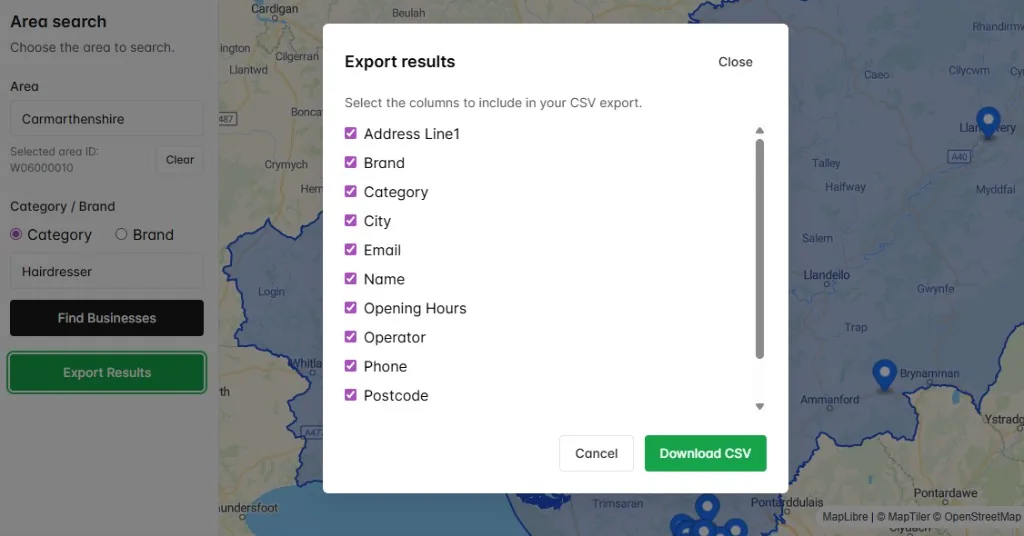
Before you download, you choose which columns to include in your CSV. Depending on what is available for a business, you can export:
- Name
- Category and subcategory
- Brand and operator where relevant
- Address line, city, and postcode
- Phone number where available
- Email where available
- Website where available
- Opening hours where available
Contact fields depend on availability in the underlying data and should be checked before outreach. The point is to remove the manual research, not to promise a perfect record for every single business.
Tips for a clean export
A little focus up front makes the list more useful:
- Keep the area tight. A single town or city tends to give a more workable list than a huge region in one pass.
- Filter before you export. Choosing the right category or brand first means you export prospects, not noise.
- Plan how you will use it. Decide whether the list goes into your CRM or stays in a spreadsheet, so you know which fields you care about most.
Frequently asked questions
Can I export more than one business at a time?
Yes. With MapDemand.ai you search a target area, filter the businesses in it by category or brand, and export the whole matching list at once rather than copying one business at a time.
What fields are included when I export businesses?
An export can include business name, category or type, brand where relevant, address or location, and phone, email, and website fields where available. Contact fields depend on availability in the underlying data and should be checked before outreach.
Do I need to install anything to export a list of businesses?
No. MapDemand.ai runs in the browser at app.mapdemand.ai. There is nothing to install and nothing to upload to begin. You start with an area search and export the matching businesses.
Export a list of businesses by area
Search an area, filter by category or brand, and export the matching businesses your team can work from.